Obscure Tooltips
Make Your First Style
To see a full production-ready example of many features (particles, animated accents, textured frames), check the built-in Vibrant Tooltips resource pack in the project repository.
If you want to work on a clean canvas without fighting against predefined styles, simply disable Vibrant Tooltips before following the steps below.
Below – a minimal 5-step guide to create a custom style that will apply only to uncommon items using the Fragmentum Layer (config folder). This example:
- creates a small custom panel (light green tint),
- creates a style that uses that panel, and
- creates a definition that applies the style to uncommon rarity items.
Quick Summary (what you’ll create)
tooltips/element/panel/uncommon_panel.json– custom panel (color)tooltips/style/uncommon_style.json– style that references the paneltooltips/definition/uncommon_definition.json– rule: apply to uncommon items
Create these files under your Minecraft config folder:
config/
fragmentum/
assets/
example/ Your pack's namespace
tooltips/
element/
panel/
uncommon_panel.json
style/
uncommon_style.json
definition/
uncommon_definition.json
If you use a different namespace instead of
example, keep paths consistent and use the same namespace in style and definition JSONs.
1. Create a Custom Panel
{
  "type": "obscure_tooltips:color_rect",
  "background_palette": {
    "top_left": "#F0001010",
    "top_right": "#F0001010",
    "bottom_left": "#F0001010",
    "bottom_right": "#F0001010"
  },
  "border_palette": {
    "top_left": "#6050FF00",
    "top_right": "#6050FF00",
    "bottom_left": "#50287F00",
    "bottom_right": "#50287F00"
  }
}
- This is a simple rectangular panel with a subtle green gradient and a soft border.
- You can tweak the hex ARGB colors (#AARRGGBB) to taste.
2. Create the Style That Uses the Panel
{
  "panel": "example:uncommon_panel",
  "effects": []
}
panelpoints to the custom panel we created.frame,slot, andiconare not specified here, so the default built-in assets will be used automatically.effectsmust be present even if empty.
3. Create the Definition That Applies the Style to Uncommon Items
{
  "priority": 50,
  "style": "example:uncommon_style",
  "filter": {
    "type": "obscure_tooltips:rarity",
    "rarity": "uncommon"
  }
}
priority: higher numbers override lower numbers in the merging system. 50 is arbitrary – pick a number that makes sense in your setup.stylepoints to the custom style we created.filteruses the rarity filter to target uncommon items only.
4. Save Files and Reload In-Game
- Save the three JSON files.
- In Minecraft, press
F3 + Tto reload resources (or restart the game). - Hover an item with uncommon rarity – your new style should appear.
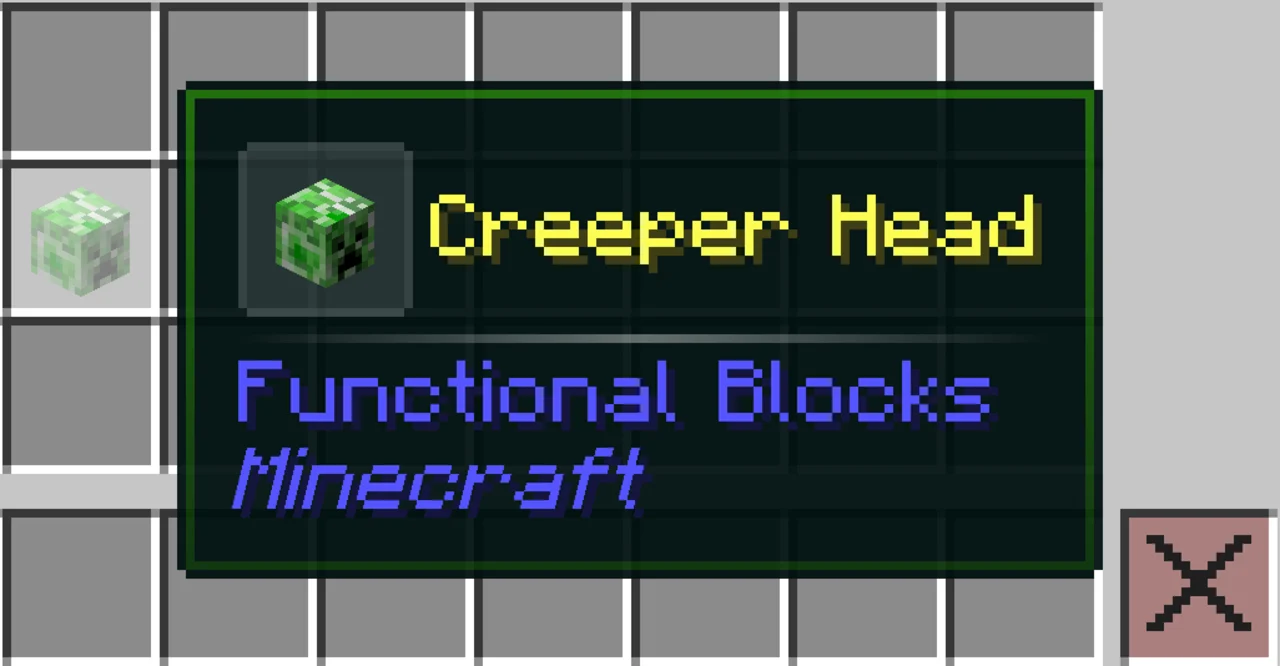
If nothing changes, check the troubleshooting tips below.
5. Troubleshooting & Tips
- Paths & Namespace – Make sure the JSON style/panel references match the filenames and the namespace (
example:uncommon_panelmatches.../example/tooltips/element/panel/uncommon_panel.json). - Recommended Editor – Using an editor with JSON syntax highlighting and auto-formatting makes editing much easier. Visual Studio Code is a popular free option and works especially well for resource packs and mod assets.
- Check JSON Syntax Carefully – JSON does not allow trailing commas. A single missing bracket or extra comma can prevent the resource from loading.
- Effects Array – effects must always exist in a style file (even if empty []). Missing it can cause the style to be ignored.
- Layer Precedence — If another definition with higher priority matches the same items, your style might be partially or fully overridden. Increase priority or adjust filters if necessary.